



Regular Email Reporting


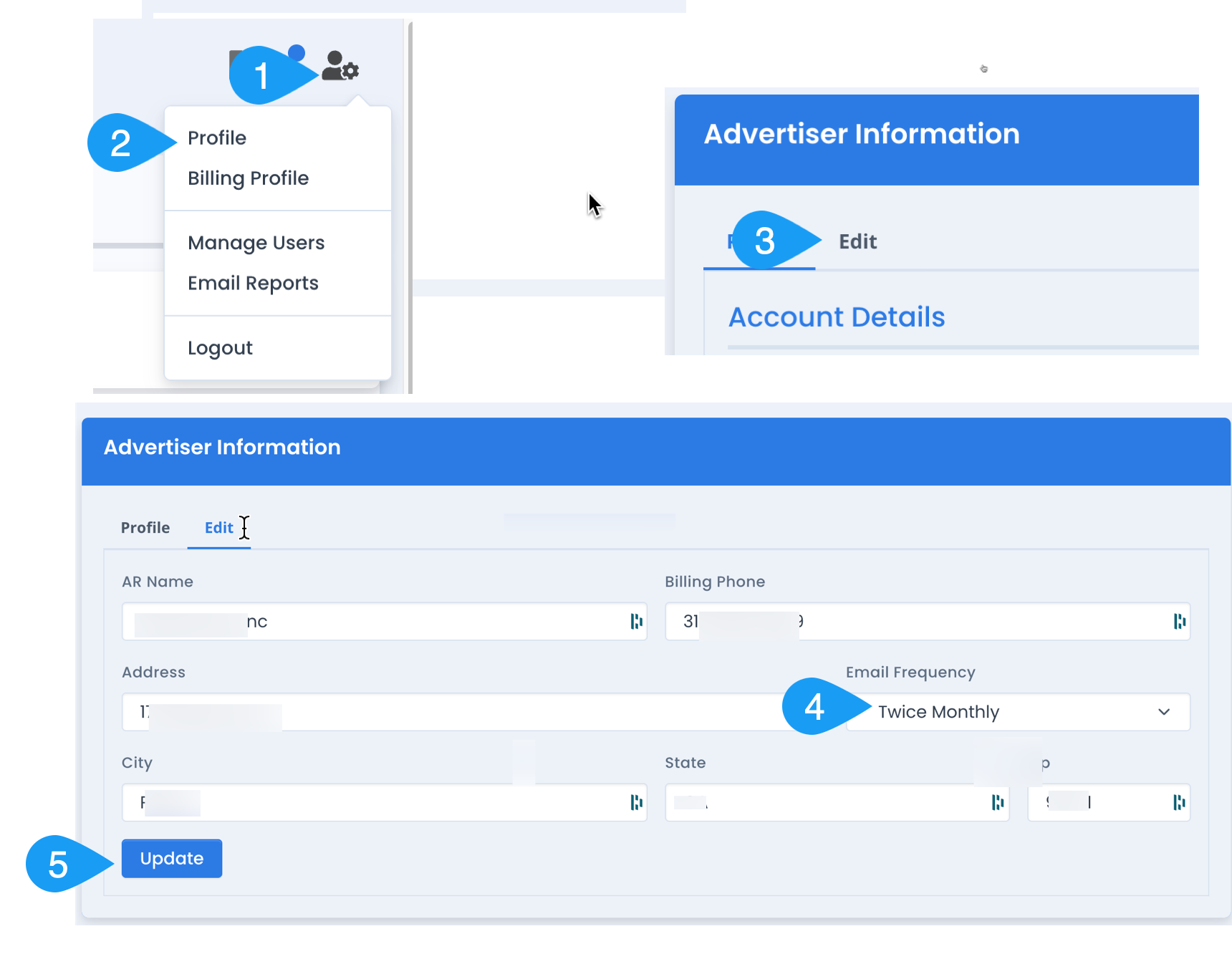
You can receive regular email summaries of each online advertising order. We send these emails every Monday evening. You can elect for the following frequency:

  • Weekly: Every Monday (the date range of data is the previous 30 days)
  • Monthly: 3rd day of every month (the date range of data is the previous month)
  • Twice Monthly: The second and fourth Mondays of the month (the date range of data is the previous 30 days).

Official Schedule

  • Dates 1–7: Week 1 = weekly, monthly
  • Dates 8–14: Week 2 = weekly, twice monthly
  • Dates 15–21: Week 3 = weekly
  • Dates 22–31: Week 4 = weekly, twice monthly

How to Sign up for regular email summaries:

How to setup your profile to receive regular online advertising reports

Example of Email

Email will be sent from reporter@digitalthrottle.com
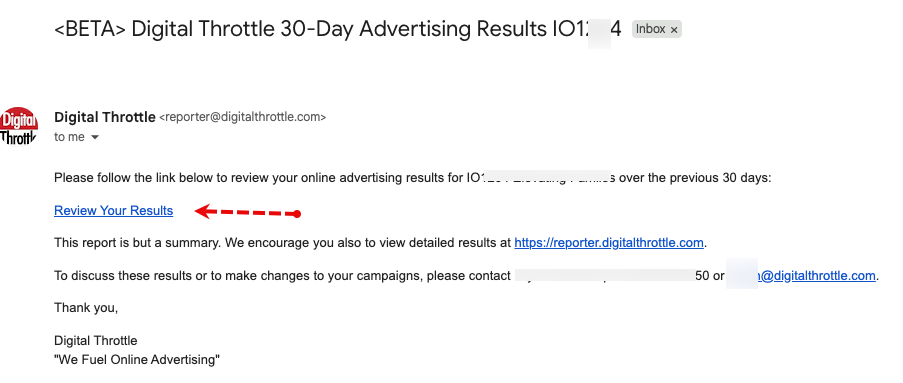
Email showing the link to the online advertising results

Example of Linked Report in the Email

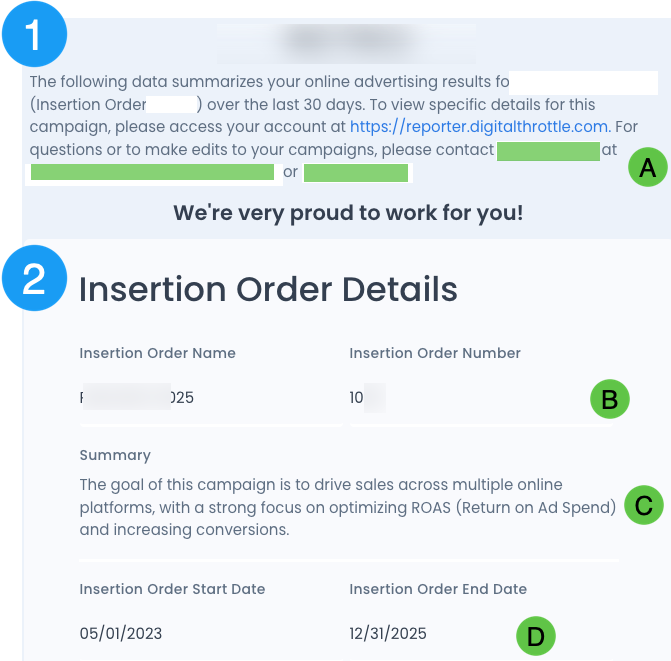
See the corresponding numbers for explanations of each section.

Example linked report in the email

SECTION 1 & 2 Details

Summary of the online reporting introduction section
  • (A) Your Digital Throttle Sales Contact is listed here. They are also cc'd on the report.
  • (B) The name of your online advertising order and its assigned insertion order (aka "IO") are listed here.
  • (C) We may show a short summary of your online advertising order goals and details.
  • (D) We show the first and last date your online ads are scheduled to run here.

SECTION 3 Details
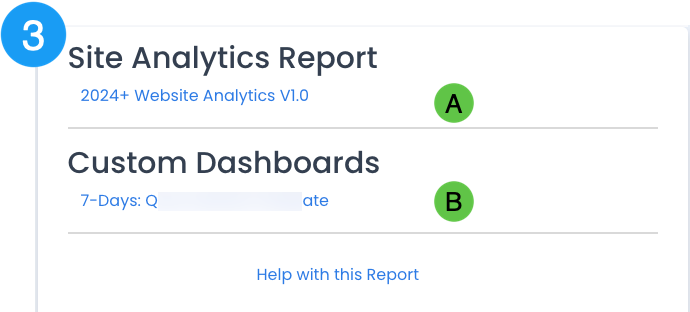
Section 3 reporting
  • (A) This links to your total site traffic results. See HERE for details on this report.
  • (B) You may also have a custom report that is a pre-built filter. You will need to be logged into reporter.digitalthrottle.com to view this custom dashboard.

SECTION 4 Details
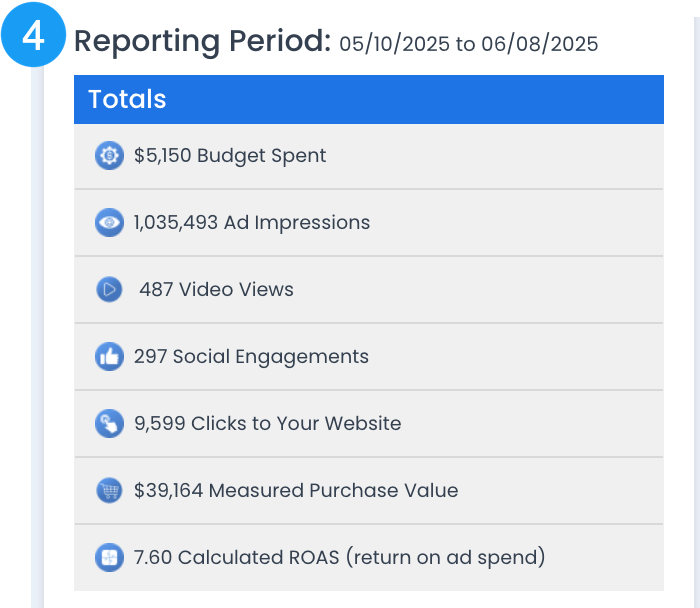
Reporting period for the last 30 days showing metrics for all types of online ads.

Using the numbers shown above, here is how to interpret the results for the reporting period shown (in this case 5/10/25 to 6/8/25):

  • Amount Spent for the reporting period was $5,150 (we round)
  • The total number of times all ads were seen (impressions) was 1,035,493
  • The video ads (on YouTube or streaming) were viewed 487 times. In the case of YouTube, we count views only from persons that do not click the "skip" button — typically watch at least 7 seconds of the video.
  • The social ads also received 297 engagements such as sharing, saving, liking & commenting on the social post.
  • The advertiser received 9,599 website visits from clicks on all their ads.
  • For clients selling on their websites, Digital Throttle ads generated $39,164 in e-commerce orders we can definitely measure.
  • Considering just the e-commerce revenue, the ROI from the paid advertising is 7.60. The common term is a 7.60 ROAS — "return on ad spend" — calculated by dividing the Measured Purchase Value by Budget Spent [$39,164 / $5,150] = 7.60.

NOTE: if you see a "n/a" like shown below, that means you are not using that type of ad. If we're not tracking e-commerce sales, you will also see a "n/a" listed.
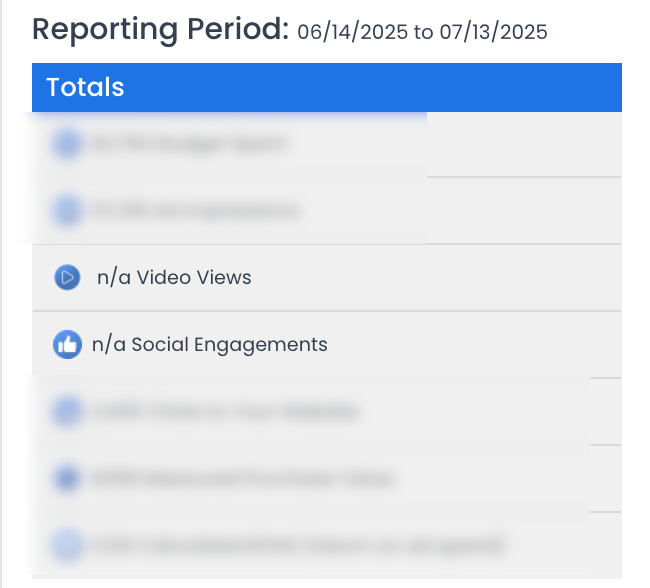
Reporting showing n/a when that online ad type was not run

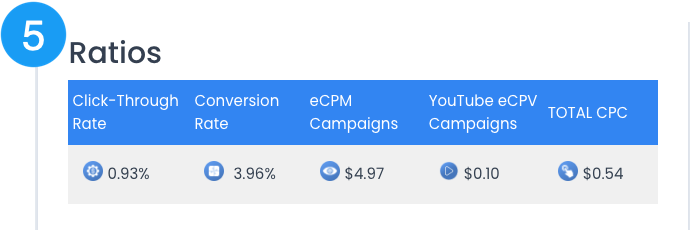
SECTION 5 Details

Common online advertising ratios

Common practice is to use ratios to compare different forms of online advertising. Using this report, here are the calculations:

  • Click-Through Rate (CTR): 9,599 clicks ÷ 1,035,493 impressions = 0.93%
  • Conversion Rate: 40,986 conversions ÷ 1,035,493 impressions = 4%
  • eCPM: $5,150 ÷ 1,035,493 ÷ 1,000 = $4.97
  • YouTube eCPV: $49 ÷ 487 views = $0.10
  • Total CPC: $5,150 ÷ 9,599 clicks = $0.54

SECTION 6 Details
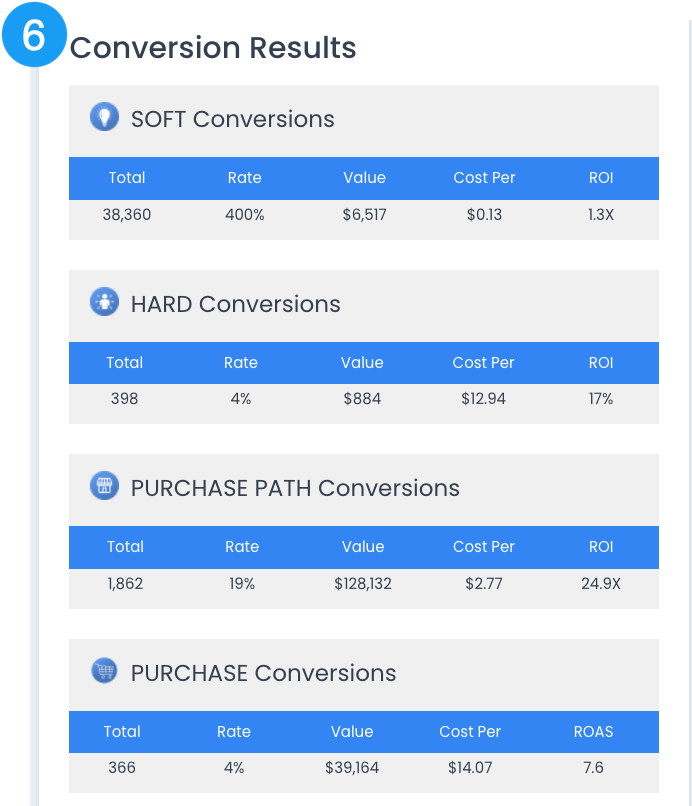
Online advertising conversion results, including ROAS

Soft Conversions measure "Engagement" on your website for people clicking on your digital ads.

Hard Conversions measure key click actions on your site such as watching a video, downloading a catalog, signing up for a newsletter, or sending you an email.

Purchase Path conversions count any activity on your site indicating "purchase intent" — Add to Cart, Initiate Checkout, Find a Dealer, etc.

Purchase Conversions count how many e-commerce orders the paid ads generated. ROAS is the order value divided by Budget Spent.


SECTION 7 Details
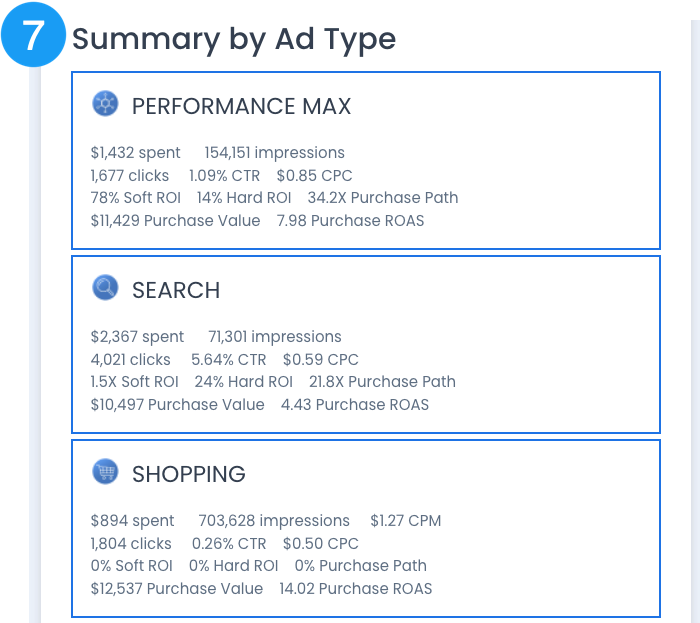
Reporting for different types of digital ads

This section details the metrics reviewed above, but segmented by each type of online ad.
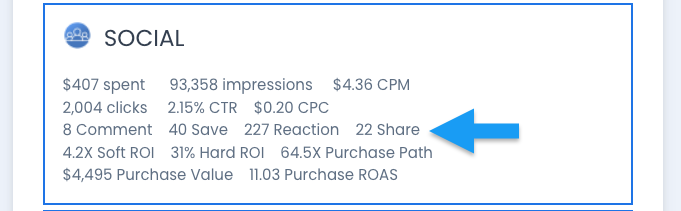
Reporting of social media engagement metrics

SECTION 8 Details

Listing of contact information for your online advertising sales expert

We repeat the contact information for your sales representative.
Conversion Dashboard Report


Please see the following tables to detail each section of your Conversion Dashboard report.

(1) Order Name — Select one or more of the main orders to filter by. Also called the "Insertion Order Name".
(2) Order Number — Same as (1) but use the assigned Insertion Order number.
(3) Ad Type — Select the type of platform(s) you want to filter this report by. Multiple choices allowed.
(4) Line Item — Select one or more line items to filter by.
(5) Line Number — Same as (4) but assigned a line number, much like a SKU.
(6) Date Ranges — Filter to select the dates to evaluate. Most reports default to the previous 30 days.
(a) Spend — Amount spent for the filters and time period selected. (a1) is the graph of Spend.
(b) Impressions — Total number of times your ads were displayed.
(c) eCPM — Average cost of every 1,000 impressions: Spend ÷ (Impressions/1,000).
(d) Link Clicks — Total direct link clicks on your ads. (d1) is the graph.
(e) New Visitors — People that clicked your ads and had not been on your website in the past 90 days.
(f) New Ratio — New visitors ÷ Link Clicks.
(g) Trend Graph — Compared to the previous period. Green = improvement / lower cost; Red = decline / higher cost.
(1) Conversions — Total of all conversions: Soft, Hard and Purchase Path.
(1.1) Conv % — Total Conversions ÷ Impressions.
(2) CTR — Click-Through Rate: Link Clicks ÷ Impressions.
(3) CPC — Cost Per Click: average cost for each link click.
(4) Ret'n Visitors — Link Clicks from users who visited your site in the last 7 days.
(4.1) Return Ratio — Ret'n Visitors ÷ Link Clicks.
(i) Soft Conversions — Engagement actions on your site after clicking your ad.
(j) Hard Conversions — Key actions: video views, catalog downloads, newsletter signups, etc.
(j1) Cost / Conversion — Budget Spent ÷ count of hard conversions.
(k) Purchase Path — Activities indicating purchase intent (Add to Cart, Initiate Checkout, Find a Dealer).
(k1) Cost / Conversion — Budget Spent ÷ Purchase Path count.
(l) Add to Cart — Count of "Add to Cart" clicks. (l1) Checkout Value — total of displayed prices.
(m) Initiate Checkouts — Count of checkout initiations. (m1) total amount of items.
(n) Orders — Count of unique website purchases attributed to your ads.
(n1) Order Value — Total value of completed orders before shipping and tax.
(n2) ROAS — Order Value ÷ Budget Spent. Think of ROAS as a multiplier.
(o) Line Name — Line items named to organize ad targeting and platforms.
(p) Line # — Assigned line number, much like a SKU.
(q) Ad Type — Type of ad this line was targeting.
(r) Spend — How much was spent for the time period for this line.
(s) Impressions — Number of times ads were displayed for this line.
(t) eCPM — Average cost per 1,000 impressions.
(u) Link Clicks — Total direct link clicks on your ads.
(v) CTR — Link Clicks ÷ Impressions.
(w) CPC — Average cost per link click.
(x) Engt / YT V — For Social: total engagements (comment, share, save). For YouTube: video views (~15+ sec).
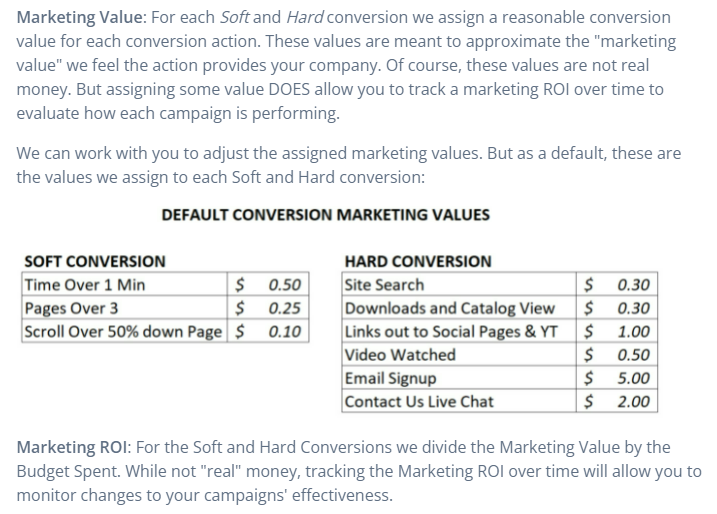
(y) Soft — Soft Conversion Marketing ROI. See HERE for assigned values.
(z) Hard — Hard Conversion Marketing ROI. See HERE for assigned values.
(aa) Cost / Path — Budget Spent ÷ count of purchase-intent actions.
(ab) Order Value — Actual product value when a user completes a purchase.
(ac) ROAS — Purchase Value ÷ Budget Spent. Key metric for purchase-driven campaigns.

Website Performance Dashboard


Log in to reporter.digitalthrottle.com to view your full Website Performance Dashboard. This report summarizes total site traffic across all sources for the date range you select.